
Web designers are constantly working towards satisfying clients with great looking sites that function extremely well.
The best way to achieve such client satisfaction is to clearly understand the expectations of your clients. One of the biggest challenges is to break through the complexity of communication and minimize the disparity of understanding between client and designer.
As a rule a client is not a professional web designer. With that said, it can be very difficult for clients to share accurate specifications for a designer. As a result a designer may waste a lot of time while the client loses a lot of money. The designer will think that the client doesn’t know what they want, and the client will think the designer is unprofessional.
The solution? ConceptDraw PRO.
By utilizing ConceptDraw PRO, clients can easily create a website sketch without any previous drawing skills or web-design knowledge. Using ConceptDraw PRO library objects clients are able to create a website sketch that is clear to the designer in less than 30 minutes.
A website sketch can be in the form of a website map, web page layout, or user scenario. A website sketch is a great tool in helping create a mutual understanding between the client and web designer.
As a result, both the client and designer will save time and money.
The designer can quickly create a website layout using ConceptDraw PRO to present a prototype of the future site.
Sunday, May 16, 2010


Thursday, May 6, 2010
Identify Vital Few Documents with ConceptDraw MINDMAP
Step 1. From ConceptDraw MINDMAP open the Documents template. Modify or add Document Characteristics.
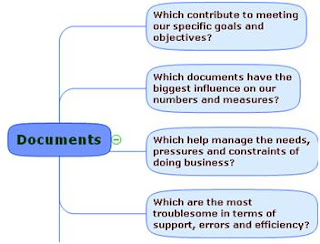
Step 2. From the toolbar, click the Brainstorming icon, and , and press Enter.
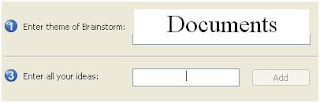
Step 3. Enter the name of each document for your business or project.
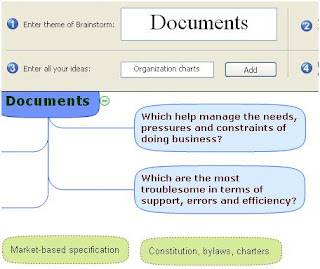
Step 4. When finished, click Finish Brainstorming. Allocate topics by dragging and dropping them as sub topics to appropriate Document Characteristics.
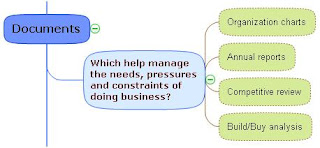
Step 5. Use symbols to visually represent different values of documents.
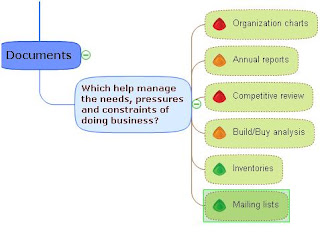
Step 6. Select a topic or sub topic, and right-click. Select Hyperlink to insert hyperlinks to specific documents.
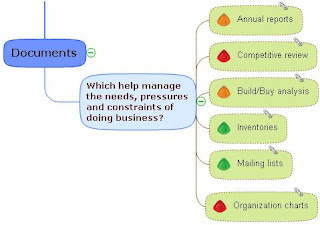
Result. An interactive mind map of essential documents within your business or project.

Step 2. From the toolbar, click the Brainstorming icon, and , and press Enter.

Step 3. Enter the name of each document for your business or project.

Step 4. When finished, click Finish Brainstorming. Allocate topics by dragging and dropping them as sub topics to appropriate Document Characteristics.

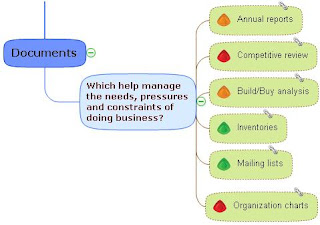
Step 5. Use symbols to visually represent different values of documents.

Step 6. Select a topic or sub topic, and right-click. Select Hyperlink to insert hyperlinks to specific documents.

Result. An interactive mind map of essential documents within your business or project.

Tuesday, May 4, 2010
4 Tips on Developing Organizational Guidelines

It can take a lot of time and effort to transform an organization’s current organizational structure into the new one, as the changes could affect business productivity.
Following some simple guidelines will ensure an effective organizational structure that will help your company succeed.
1. Visually Represent your strategy.
Find some time to think about which groupings of people can help deliver your organization’s strategy more effectively. Ask yourself which functions are most critical in order to achieve strategic goals. Put those who you need to communicate with closest to you.
2. Reduce bureaucracy.
Every organization has processes, such as the hiring or purchase process. If you consider your organization’s key processes and design the structure around them, you can reduce bureaucracy and improve productivity.
Try to reduce the number of times that a process spans more than one department. Every position within an organizational chart should reports to one manager.
Giving two or more managers the power to direct the activities of one employee is an invitation to mis-communication and chaos.
Obviously, the fewer handovers there are between departments the faster processes take place and the more efficient an organization is.
3. Keep it simple.
Organizational structures should ultimately be simple to understand. Anyone looking at the organizational chart should be able to see how various departments contribute to the organization’s goals from first view.
This has many advantages:
- Everyone understands how they fit within the organization.
- Employees know where to go to get what they need.
- Clear career growth opportunities in the company keep employee motivation high.
- Stakeholders, such as clients and suppliers, are served better because they know what part of the organization to turn to.
Once you have a working organization chart, the next step is to figure out how that chart is going to serve the future of the business.
We refer to this as Double Vision: keeping in mind how the present is going to serve the future. As you build your business toward your Strategic Objective, think about how your organization chart needs to morph and evolve in order to serve that vision.
Get started developing your organizational structure with ConceptDraw Office.
Thursday, April 29, 2010
Edward De Bono: Six Thinking Hats

In the book "Six Thinking Hats", Edward DeBono demonstrates how we can all become better thinkers by using deliberate role-playing.
The premise of the method is that the human brain thinks in a number of distinct ways which can be identified, deliberately accessed and hence planned for use in a structured way allowing one to develop strategies for thinking about particular issues.
With his use of case studies and real examples of his methodology, DeBono describes the 6 Thinking Hats as:
- White Hat
Facts and Information
- Red Hat
Feelings and Emotion
- Black Hat
Critical Judgment
- Yellow Hat
Positive
- Green
New Ideas
- Blue
The Big Picture
This methodology is believed to have a positive impact on the thinking process.
Download the ConceptDraw 6 Hats mind map template created on the basis of the principles laid out by Edward DeBono in his book, "Six Thinking Hats".
This map was constructed using ConceptDraw MINDMAP 6, using icons and objects from ConceptDraw PRO 8.
Download 6 Hats mind map here!

De, Bono Edward. Six Thinking Hats. 2nd ed. Boston: Back Bay, 1999. Print.
Thursday, April 22, 2010
ConceptDraw Now Available in Japanese
CS Odessa is very excited to announce that ConceptDraw Office is now available with a Japanese language interface.
ConceptDraw MINDMAP for Macintosh currently supports English, German, French, and Japanese languages; ConceptDraw MINDMAP for Windows supports English, German, French, Russian (new) and Japanese languages. In addition, ConceptDraw MINDMAP includes built-in language dictionaries to support mind map content in other languages, such as Spanish and Portuguese.
All supported language interfaces are available within a single product and there’s no need to download or install a specific language product variation. Support for each language version is released at the same time, so users may utilize full support at time of purchase.
All customers of ConceptDraw MINDMAP 6 may receive a no-charge update to new language interfaces by downloading the most recent version of the product at http://www.conceptdraw.com/mmupdate .
ConceptDraw MINDMAP for Macintosh currently supports English, German, French, and Japanese languages; ConceptDraw MINDMAP for Windows supports English, German, French, Russian (new) and Japanese languages. In addition, ConceptDraw MINDMAP includes built-in language dictionaries to support mind map content in other languages, such as Spanish and Portuguese.
All supported language interfaces are available within a single product and there’s no need to download or install a specific language product variation. Support for each language version is released at the same time, so users may utilize full support at time of purchase.
All customers of ConceptDraw MINDMAP 6 may receive a no-charge update to new language interfaces by downloading the most recent version of the product at http://www.conceptdraw.com/mmupdate .
Monday, April 19, 2010
Using ConceptDraw MINDMAP to Gather Requirements
Here is about an 8-minute video on using ConceptDraw MINDMAP to gather and organize requirements. It touches briefly on adding priorities and task information to requirements.
You can also find this video on YouTube.
You can also find this video on YouTube.
Saturday, April 17, 2010
What is in ConceptDraw Office?
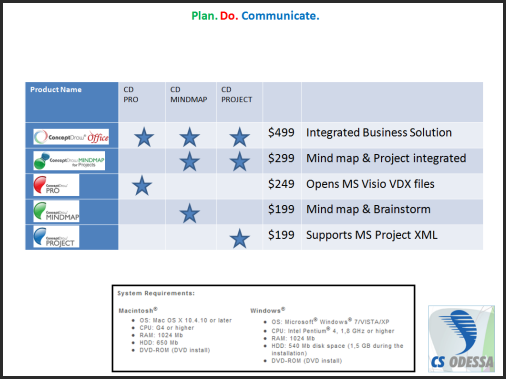
A question that we often get is, "what is in ConceptDraw Office" and what is in "ConceptDraw MINDMAP for Projects". A second question that we get often is, "are the individual products that are in ConceptDraw Office and ConceptDraw MINDMAP for Projects dumbed down versions of your individual products".
I have included a chart to show what is included in our products, plus the bundled products are our individual products. This brings great value to you our customers. (Click on image to make larger)

I have included a chart to show what is included in our products, plus the bundled products are our individual products. This brings great value to you our customers. (Click on image to make larger)
Subscribe to:
Posts (Atom)


 Posts
Posts


